
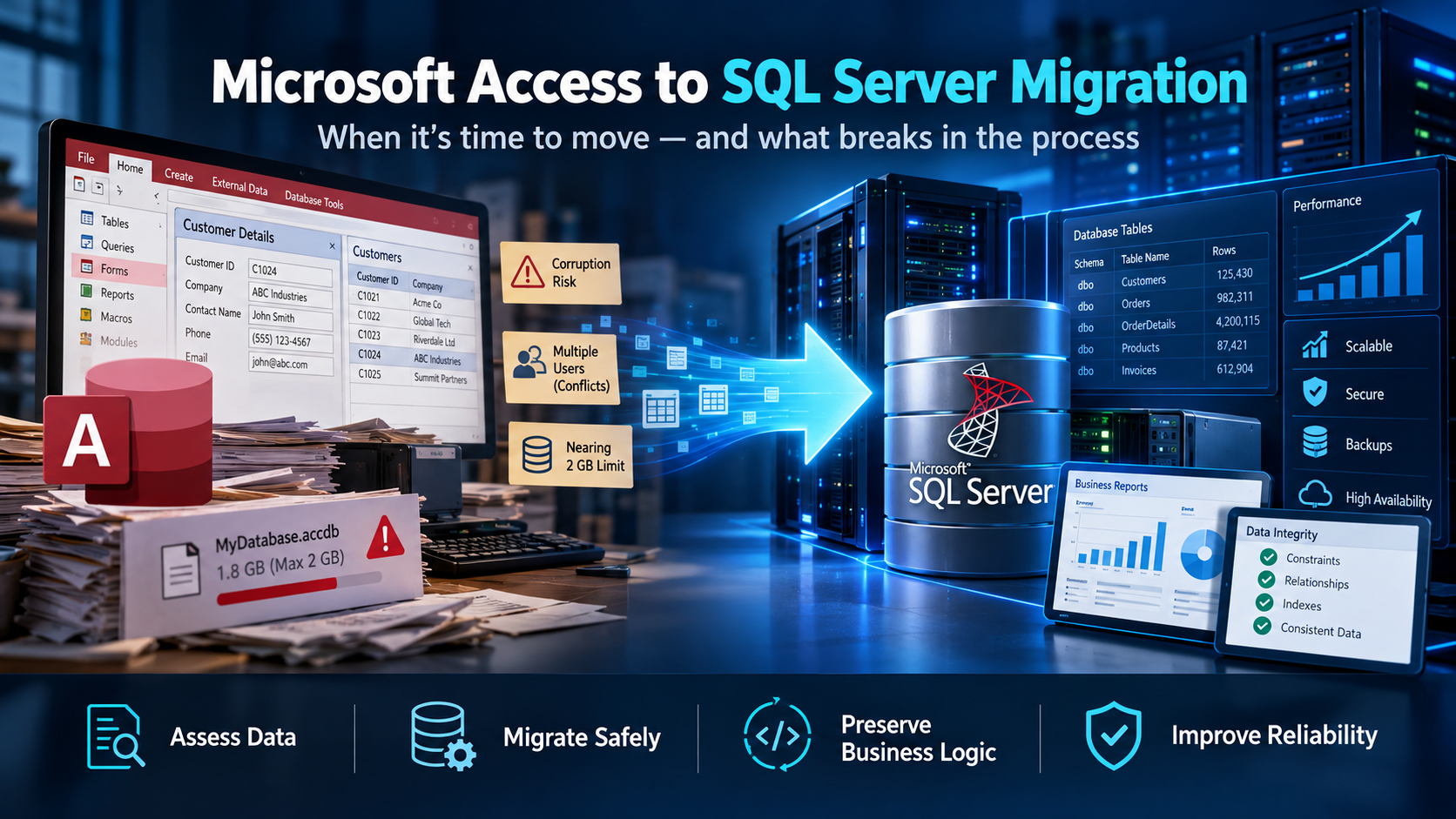
Microsoft Access to SQL Server: How to Tell When It Is Time, and What Breaks When You Move
A Microsoft Access to SQL Server migration usually starts when an Access database becomes too large, unstable, or difficult for multiple users to share.
The database corrupts for the third time in a year. Someone gets locked out while a colleague has a form open. The file passes 1.8 GB and starts behaving strangely. The person who wrote it left in 2019 and nobody else understands the code behind the buttons.
If any of that is familiar, the question is not whether to move. It is how to move without losing twelve years of accumulated business logic in the process.
We have built database applications since 2003, and we still work on Access systems that businesses depend on daily. Here is an honest account of when to move and what the move actually costs.
Why Access struggles, specifically
Access is a file-based database. When multiple people use it across a network share, every one of their computers is reading and writing the same file over the network. There is no server process arbitrating access — the file itself is the shared resource.
That single design fact produces most of the symptoms:
Corruption. A dropped network connection, a workstation that sleeps mid-write, or a crash during a save can leave the file damaged. It happens more often as more people use it and as the network gets busier.
Locking conflicts. Users blocking each other from records, or the whole file, in ways that are hard to diagnose and harder to explain.
The size ceiling. An Access database file is capped at 2 GB. Approaching that limit produces increasingly strange behaviour, and the practical ceiling is lower than the technical one.
Concurrency limits. The specification permits a substantial number of simultaneous users. In practice, over a network share, performance degrades long before you reach it — and the number where it degrades depends on your network, not on Microsoft’s documentation.
No real security model. Access’s file-level protections are not a substitute for database permissions, and they have not been for a long time.
What Access is genuinely good at
Worth saying, because the migration decision should be made honestly.
Access is an excellent rapid application builder. It lets someone who understands the business build a working system without a development team, and a surprising number of those systems have run companies for a decade. That is not a failure. That is a small business solving its own problem with the tool available.
The forms and reports are quick to build and easy to change. For a single user or a very small team with a modest dataset, Access remains a reasonable answer.
The problem is not that Access is bad. It is that success outgrows it.
Check one thing first: is it split?
Before anything else, find out whether your Access application is split into a front end and a back end.
A split application keeps the data in one file on the server and gives each user their own copy of the forms, queries and code, linked to it. An unsplit application has everything in one file that everyone opens.
If yours is unsplit, splitting it is often the cheapest meaningful improvement available, and it is a prerequisite for the easiest migration path below. If it is already split, you are in better shape than most.
Three Microsoft Access to SQL Server Migration Paths
1. Move the data to SQL Server, keep the Access front end.
The back end moves to SQL Server. The Access front end stays, connecting to the new tables through linked tables over ODBC. Users see the same forms they have always used. A successful Microsoft Access to SQL Server migration should preserve the business logic users already depend on while improving reliability and scalability.
This solves corruption, the size ceiling, concurrency, backup, and security in one step, without retraining anyone. It is by a wide margin the best value in this list, and it is where most businesses should start.
2. Rebuild as a web application.
Same data, new front end, reachable from a browser rather than requiring Access installed on a Windows machine. Appropriate when people need access from outside the office, from other devices, or when the interface itself has become the constraint.
More expensive, and it delivers things path one cannot.
3. Replace the system entirely.
Sometimes the business process has changed enough that recreating the old system faithfully is not the goal. That is a different project, and our guide to legacy application modernization covers why replacing a long-running system piece by piece usually beats a single rewrite.
What the migration tooling does, and what it leaves you
Microsoft publishes a free SQL Server Migration Assistant for Access. It will move your tables and data across and set up the linked tables, and it does that part well.
What it does not do is make the resulting application work correctly. That part is manual, and it is where the real effort sits.
Things that reliably need attention:
Autonumber becomes identity, and the behaviour around inserting and retrieving new record IDs is not identical. Any code that assumed Access semantics needs checking.
Data types shift. Access Yes/No becomes a bit column. Date/Time handling differs, particularly around empty values — Access often treats a blank date as an empty string where SQL Server expects a null.
Queries with Access-specific functions break. Anything using Access or VBA functions that SQL Server does not have will need rewriting.
VBA code behind forms needs reviewing, especially anything that walks through records one at a time. Patterns that were acceptable against a local file become slow across a network to a server, and the fix is usually to let the database do the work instead.
Referential integrity that was never enforced becomes a problem. This is the big one, and it leads directly to the next section.
The hidden bill is data quality
Access will happily hold data that a properly constrained SQL Server database will reject.
Orphaned records pointing at customers that no longer exist. Duplicate keys in a table that never had a unique constraint. Text in a field that was supposed to hold numbers. Dates in the year 1900 because someone typed an entry wrong in 2014.
None of that surfaces while it sits in Access. All of it surfaces the moment you try to load it into a database with real constraints.
Budget for it. Profile the data before you plan the migration, not during it, because the finding frequently changes the timeline. And decide deliberately whether to clean the data or relax the constraint — both are legitimate answers, and choosing by accident is not.
A sequence that works
- Profile the data. Row counts, orphans, duplicates, type violations. Do this first; it sets the real scope.
- Split the application if it is not already split.
- Migrate the back end to SQL Server and relink the front end.
- Test with real users doing real work, not with a checklist. The problems are in the workflows nobody documented.
- Fix what surfaces — the slow forms, the broken queries, the code that assumed the old behaviour.
- Then decide about the front end. With the data on a proper server, rebuilding the interface becomes a separate, optional project rather than an emergency.
Running the old Access system alongside the new back end during testing is worth the inconvenience. Keep a copy of the original file afterward, longer than feels necessary.
Where ITsoft fits
Our Microsoft SQL Server and Access database development work covers exactly this transition — profiling, migration, relinking, and the query and code work that follows. We also support businesses who are not ready to move yet and need the Access system stabilised in the meantime, which is a legitimate position.
If the system underneath is also aging, that is a related deadline worth checking — see our guide to SQL Server 2016 end of support.
Talk to Mike Treat about your Access database — we will profile what you have, tell you which path fits, and give you a realistic scope including the data cleanup. The assessment is yours regardless.
Related reading: Microsoft SQL Server and Access database development · SQL Server consulting · legacy application modernization