
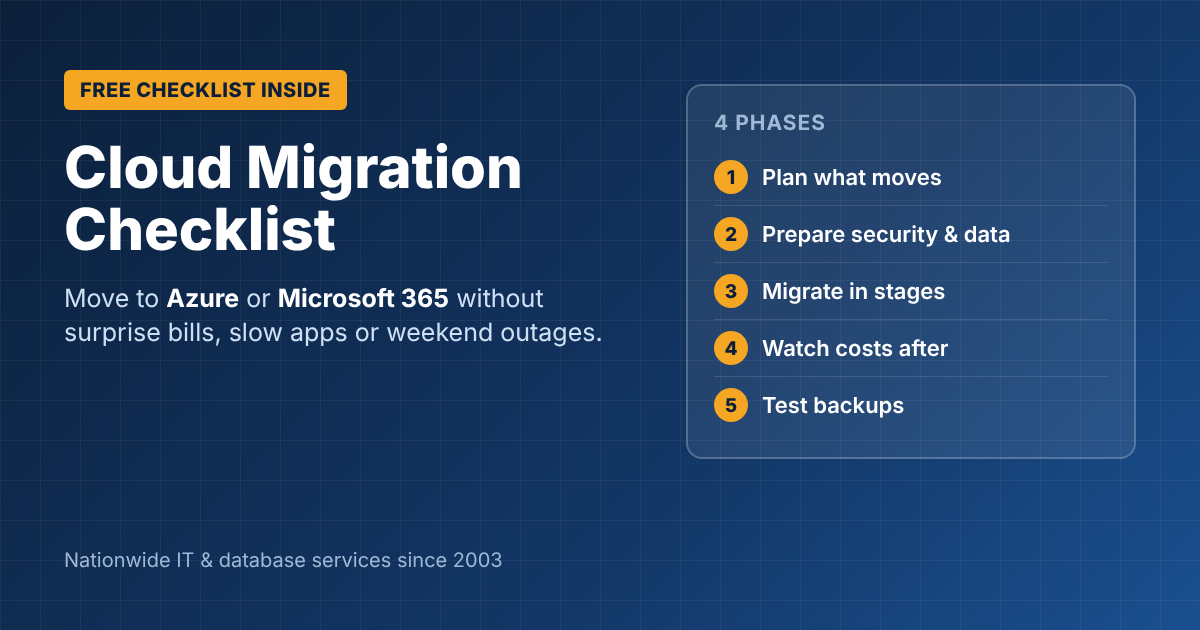
Cloud Migration Checklist for Small Businesses
A cloud migration can cut hardware costs, make remote work easier and remove the stress of aging servers. It can also go badly: surprise monthly bills, apps that run slower than before, and a weekend outage nobody planned for. The difference is almost always preparation. This cloud migration checklist covers what to decide before you move, how to move safely, and what to do afterward, whether you’re moving to Microsoft Azure, Microsoft 365 or another cloud.
Before you start: is the cloud right for you?
The cloud is a good fit when your servers are nearing end of life, your team works remotely, or you want to stop buying hardware every few years. It’s less of a fit for applications that need very fast local access to large files, or for old software that can’t run in the cloud without changes.
Many small businesses end up hybrid: email and files in Microsoft 365, a few applications in Azure, and one or two systems kept on-site.
Phase 1: Plan (weeks 1–2)
- ☐ List everything you run: servers, applications, databases, file shares, printers, and who uses each one.
- ☐ Map dependencies. Which apps talk to which databases? What breaks if one moves and the other doesn’t?
- ☐ Decide what moves, what stays and what retires. Some old servers can simply be switched off.
- ☐ Pick the approach for each system: move it as-is (lift and shift), move it to a managed service (such as Azure SQL), or replace it with a cloud app (such as SharePoint for file shares).
- ☐ Estimate monthly cloud costs. Compare them with what you spend now on hardware, power, maintenance and support over 3–5 years.
- ☐ Check licensing. Some software licenses don’t transfer to the cloud, and some vendors charge more for cloud use.
Phase 2: Prepare (weeks 2–4)
- ☐ Check your internet connection. Once systems are in the cloud, your connection is your lifeline. Consider a backup line.
- ☐ Set up identity and security first: multi-factor authentication (MFA), admin accounts and access rules.
- ☐ Clean up data before moving it. Archive old files and remove duplicates, so you don’t pay to store clutter.
- ☐ Run an assessment. Microsoft’s free Azure Migrate tool can discover your servers and estimate cloud sizing and cost.
- ☐ Plan backups in the cloud. Cloud providers keep the platform running, but protecting your data is still your job.
Phase 3: Migrate (weeks 4–8)
- ☐ Start with a low-risk system to prove the process, such as a file share or test server.
- ☐ Test with real users before switching over each system.
- ☐ Schedule cutovers after hours or on weekends, with a written rollback plan.
- ☐ Communicate with staff: what’s changing, when, and who to call.
- ☐ Keep the old system available (but read-only) for a short period after cutover, just in case.
Phase 4: After the move
- ☐ Watch costs for the first 90 days. Right-size servers that are bigger than they need to be, and turn off what you don’t use.
- ☐ Confirm backups run and restore correctly.
- ☐ Decommission old hardware and wipe it securely.
- ☐ Update your documentation and your business continuity plan.
Common cloud migration mistakes
- Moving everything at once. A phased move is slower on paper and faster in practice.
- Ignoring ongoing costs. Cloud servers left running at full size can cost more than the hardware they replaced.
- Skipping security setup. A cloud server with a weak admin password and no MFA is a target from day one.
- No testing. Apps that worked on-site can behave differently in the cloud, especially older software and databases.
Get help with your cloud migration
ITsoft plans and runs cloud migrations for businesses across the U.S., from Microsoft 365 and SharePoint to Azure servers and SQL databases, with onsite support in the Oklahoma City area.
Get a Free Cloud Migration Assessment
FAQs
How long does a cloud migration take?
For a small business with a few servers, typically 4–8 weeks from planning to the final cutover. Larger or more complex environments take longer.
Is the cloud cheaper than running our own servers?
Sometimes. It removes hardware purchases and maintenance, but adds monthly fees. Compare total costs over 3–5 years, not just the first month’s bill.
Will we have downtime during the migration?
Usually only during short, scheduled cutovers outside business hours. Good planning and testing keep it to a minimum.
Related reading: Cloud migration experts · Cloud & infrastructure services · Windows Server upgrade services · SQL Server upgrade services