
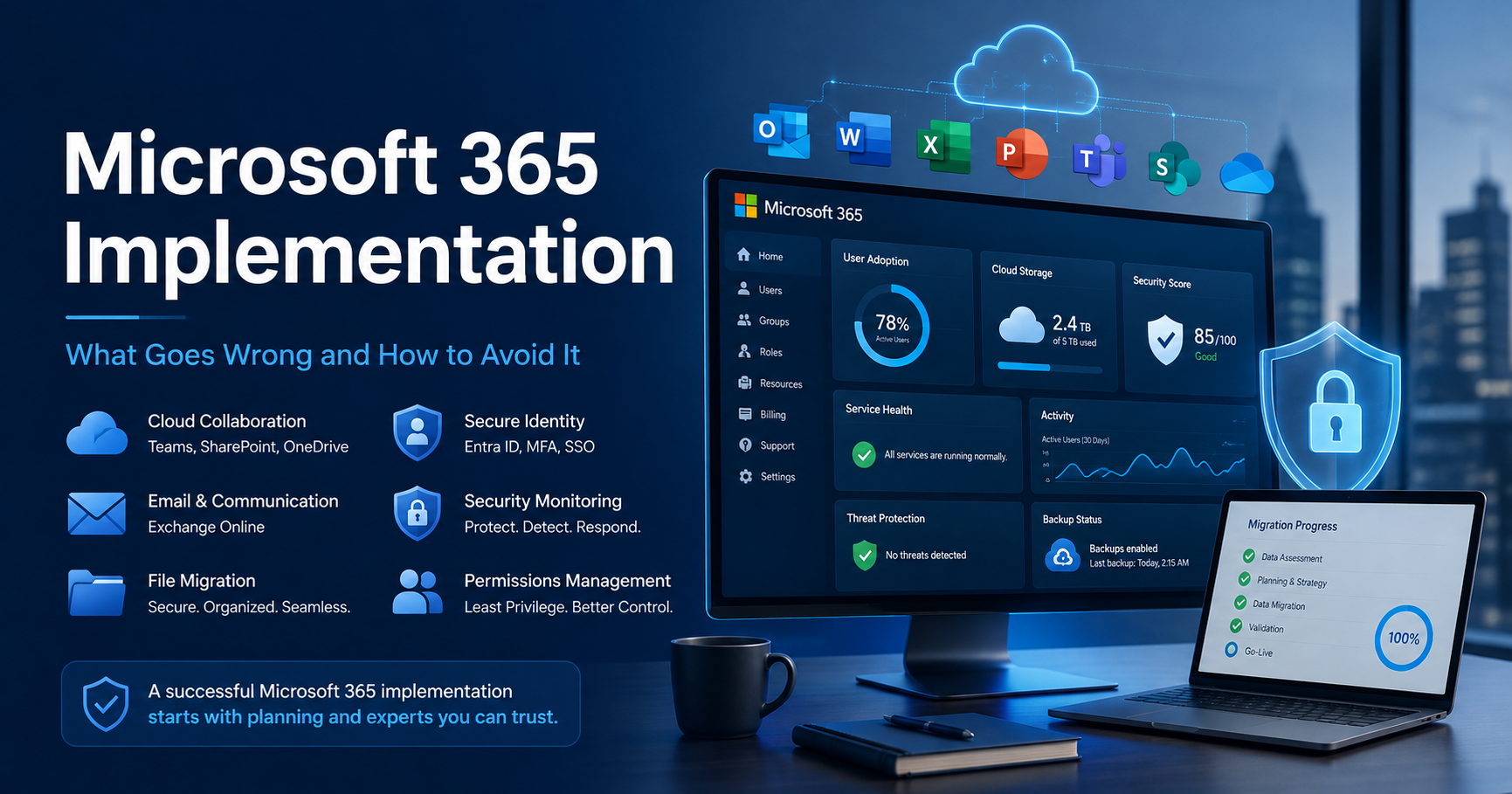
Microsoft 365 Implementation: What Goes Wrong and How to Avoid It
A Microsoft 365 implementation usually goes fine on the day. Mail moves, people log in, files appear where they should.
The problems show up three months later. A departing employee’s mailbox turns out to be inaccessible after their license was removed, and nobody documented how the data would be preserved. Nobody can explain who has access to the finance folder. A user gets phished and the attacker has mail access for two weeks because sign-in alerts were never configured. Somebody asks where the backups are and discovers the answer is nowhere.
None of these are migration failures. They are decisions that were skipped during the implementation because nothing broke when they were skipped.
We have moved businesses onto Microsoft 365 since the Office 365 days, and the pattern is consistent enough to be worth writing down.
Identity first, mail second
The instinct is to start with email, because email is what people notice. Start with identity instead.
Microsoft 365 sits on Entra ID — formerly Azure Active Directory — and it is now the front door to everything: mail, files, Teams, and any other application you connect to it later. Every decision you make about identity is one you will be living with for years, and unwinding them later is significantly harder than getting them right the first time.
The questions worth settling before a single mailbox moves:
- Are you synchronising from an on-premises Active Directory, or is Entra ID your only directory? Both are valid. Running both without a clear source of truth is how you end up with duplicate accounts and password confusion.
- What is your naming convention for accounts, groups, and shared mailboxes? Sounds trivial. Ask anyone who inherited a tenant where half the groups are named after people who left.
- Who gets administrative rights, and how many people genuinely need them? Global Administrator is handed out far too freely during implementations and rarely revoked afterward.
- Are administrators using separate accounts for admin work and daily email? If your Global Admin account is also the one reading mail and clicking links, one successful phish takes the whole tenant.
Multi-factor authentication is not optional, and neither is the policy around it
Enabling multi-factor authentication is the single highest-value thing in the entire implementation. It is also where implementations get lazy, because MFA generates helpdesk calls and there is pressure to leave exceptions in place.
Two things to get right:
Cover everyone, including administrators and service accounts. Attackers specifically look for the account that was excluded. An MFA policy with three exceptions is an MFA policy with three doors.
Decide the method deliberately. SMS codes are better than nothing and materially weaker than an authenticator app, because phone numbers can be transferred away from their owner. Push notifications with number matching are the practical standard.
If your licensing includes Conditional Access, use it. Blocking sign-ins from countries you do not operate in and requiring compliant devices for admin access are both straightforward to configure and eliminate a large share of opportunistic attacks.
Licensing is a design decision, not a purchasing decision
Businesses routinely buy the wrong Microsoft 365 licence, and the mistake is usually discovered when they try to do something the licence does not permit.
The tiers differ in more than storage. Security capabilities — device management, advanced threat protection, conditional access, data loss prevention — are gated behind higher tiers, and the business-focused plans have a user cap that becomes a migration project the day you exceed it.
Two practical notes. First, work out what security features you actually intend to use before choosing a tier, because buying the cheaper licence and adding standalone products usually costs more than the higher tier would have. Second, licence details and names change regularly, so verify against Microsoft’s current documentation rather than an article — including this one.
Microsoft 365 does not back up your data by default
This is the assumption that causes the most damage, and it is genuinely widespread.
Microsoft replicates your data across their infrastructure so that a datacenter failure does not lose it. That is availability, not backup. It does not protect you from a user deleting a mailbox, an administrator removing a SharePoint site, a ransomware infection syncing encrypted files up to OneDrive, or a departing employee clearing out their own folders.
The built-in retention windows exist and they are shorter than most businesses assume — and critically, they run out. Once the window closes, the data is gone.
What has changed recently is worth knowing, because a lot of advice on this subject is out of date. Microsoft now sells its own backup product for Microsoft 365, generally available since 2024. It covers Exchange Online, SharePoint, and OneDrive, it prices by data volume rather than per user, and Microsoft designed the service for fast recovery at Microsoft 365 scale. It is a genuine option and it did not exist a few years ago.
Two things about it that matter for your decision:
- It is not enabled by default. It is a paid add-on you configure deliberately. Having Microsoft 365 does not mean you have it.
- It covers three workloads, not everything. Exchange, SharePoint, and OneDrive are in scope. Teams chat content and several other services are not. Verify current coverage before assuming a workload is protected.
The alternative remains a third-party backup product, and the trade-off is real rather than obvious. Microsoft’s option is faster to restore and simpler to buy, but it keeps your backup inside the same Microsoft environment it is protecting. A third-party product held outside that environment gives you separation, which matters more for some threat models than others.
Either way, the decision has to be made rather than assumed. This is the gap covered in our guide to data backup and recovery, and it is the item most often missing from an otherwise competent implementation.
Migrate files with a plan, not with a sync client
Mail migration is a well-trodden path. File migration is where implementations sprawl.
The temptation is to point OneDrive at the old file server and let it sync. That works until it doesn’t — long file paths break, permissions do not translate, and a decade of accumulated folders lands in the cloud with the same structural problems it had on-premises.
Decide three things before moving anything:
- What is actually still needed? Most file servers contain years of material nobody has opened. Migration is a rare chance to leave it behind rather than pay to host it.
- What belongs in SharePoint versus OneDrive? Shared business content goes in SharePoint or Teams. OneDrive is personal storage. Businesses that put shared files in one person’s OneDrive discover the problem when that person leaves.
- How do permissions map? File server permissions and SharePoint permissions are different models. A direct translation is rarely the right answer, and permission sprawl is very hard to unwind later.
Set up monitoring before you hand it over
An implementation is not finished when everyone can log in. A few things worth configuring while you are still in the tenant:
- Sign-in and audit logging, with alerts for impossible-travel and unusual sign-in patterns
- Alerts for mailbox forwarding rules being created — a classic sign of a compromised account
- A documented offboarding process. Removing a user’s licence starts a clock on their mailbox data rather than deleting it instantly, but the clock does run out. Confirm the current grace period in Microsoft’s Microsoft 365 documentation and build your process around it instead of around memory.
- Written record of tenant configuration, admin accounts, and licence assignments, stored outside the tenant
Getting Copilot-ready is mostly a permissions problem
If AI tooling is on your roadmap, it is worth knowing early: Microsoft Copilot surfaces content based on what a user already has permission to see. That makes it a very effective discovery tool for permission mistakes.
If your SharePoint permissions are loose — a site shared with everyone, a folder inherited from a migration nobody audited — Copilot will cheerfully surface salary data to whoever asks. Cleaning up permissions is not a Copilot project, it is the prerequisite. This is also an important part of preparing a Microsoft 365 environment for Copilot.
Where ITsoft fits
We handle Microsoft 365 implementation for businesses that want it configured properly rather than merely working — identity, security policy, licensing, migration, and the backup and monitoring that most implementations leave out. If you are already on Microsoft 365 and unsure how it was set up, a review is usually more useful than a migration.
Talk to Mike Treat about your Microsoft 365 setup — we will document how your tenant is configured, where the gaps are, and what to fix first. The report is yours regardless.
Related reading: data backup and recovery · managed service provider services · Windows Server setup and maintenance